Three read-at-a-glance boards that show your fleet on a date axis: the Availability Matrix for a heat-map of what is free, the Availability Calendar for a unit-by-unit timeline, and the Maintenance Schedule for planning workshop work. This guide covers what each one shows, where to open it, and how to read it.
Which view answers which question
The three views look at the same fleet from different heights, so reach for the one that matches the question in front of you.
The three views
Availability Matrix
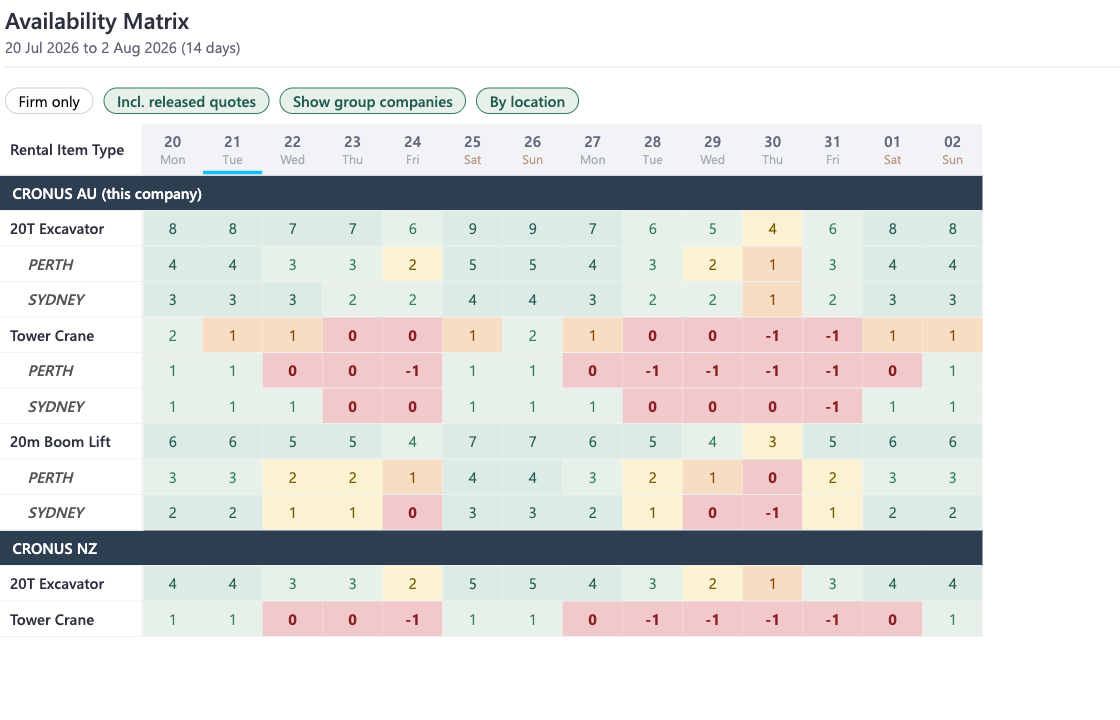
"How many of each type are free each day?" A numeric heat-map, one row per item type and one column per day, coloured from plenty to oversold. The fastest way to see whether you can cover a run of days before you open anything.
Availability Calendar
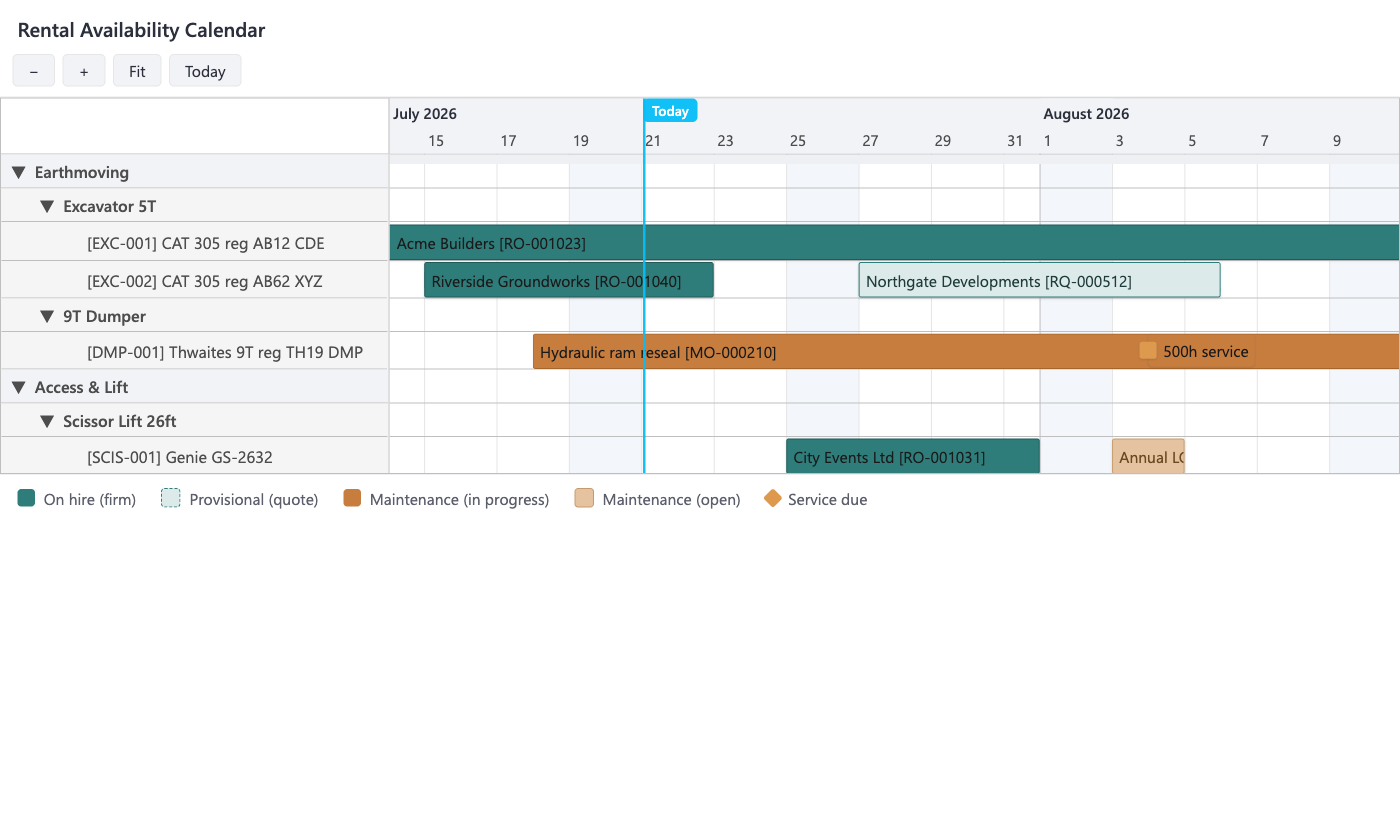
"Which specific units are committed, and why?" A timeline with one row per individual unit, showing the hires, quotes and maintenance sitting on each machine. The way to find the exact free unit and the document behind every commitment.
Maintenance Schedule
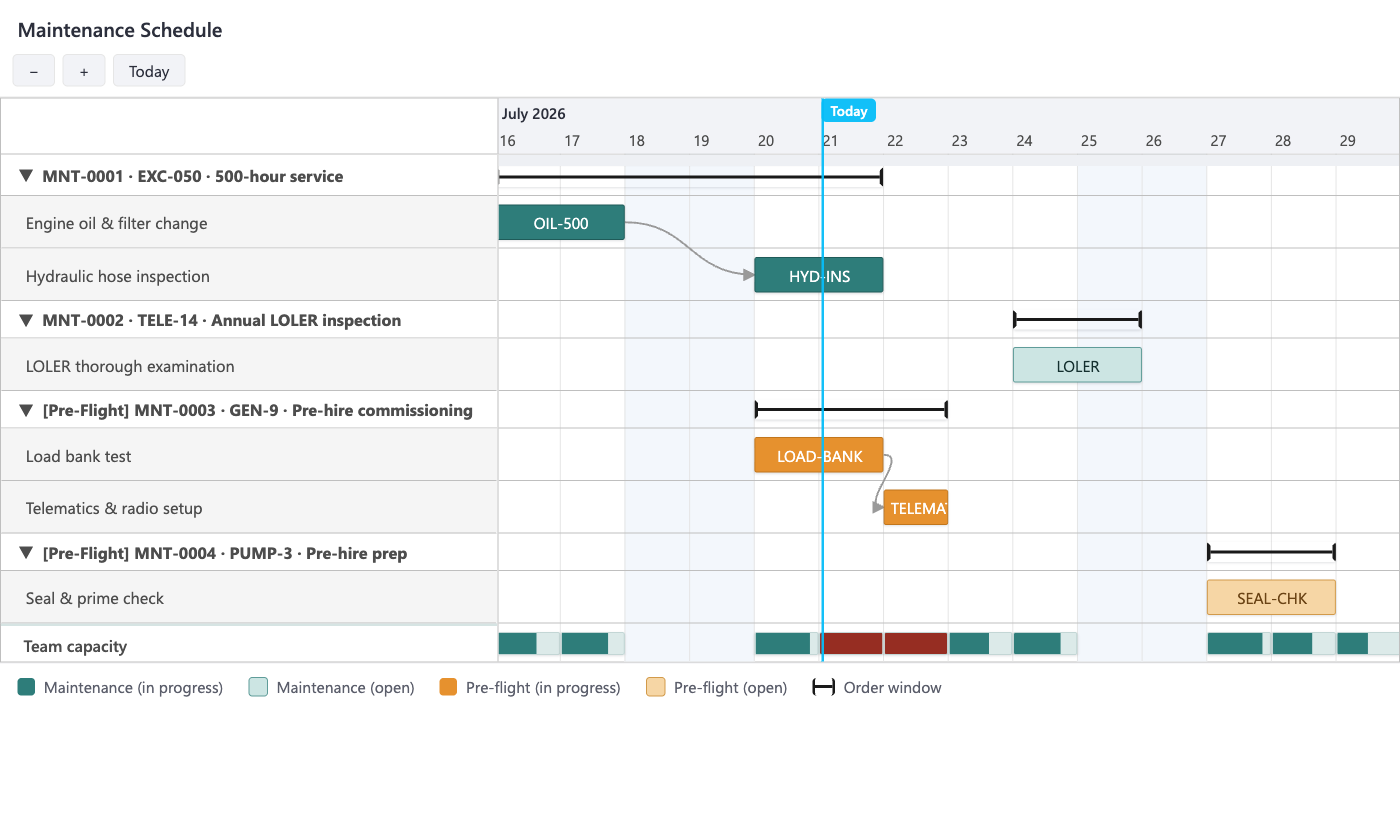
"Does the workshop's planned work fit, and what is slipping?" A schedule board for maintenance orders, with draggable task bars, dependency arrows, and a team-capacity strip that turns red when a day is overbooked.
The Availability Matrix and Availability Calendar are pictures only: you still make and change bookings through the rental quote and order. The Maintenance Schedule is the one you can edit directly, by dragging tasks to reschedule them.
Availability Matrix
The matrix is a heat-map of availability: each item type is a row, each day is a column, and each cell shows how many units of that type are free on that day. The colour is graded relative to the row's own fleet size, so at a glance a green cell means comfortable and a red cell means you are close to the edge, whatever the size of that fleet.
Where to open it. Open a rental quote or rental order, and in the Lines subform select a line whose Type is Rental Item Type, Kit, or Rental Item. Then choose the Availability Matrix action. The board opens scoped to that line's type and starting from the document's rental start date, so you are checking exactly what you are about to book.
The matrix with Show group companies and By location both on: your own company (CRONUS AU) split into Perth and Sydney rows beneath each type, plus another company in the group (CRONUS NZ). Today is underlined and weekends are shaded.
Reading the cells
The number in a cell is how many units are available that day. Its colour is the heat band, worked out as that number against the row's fleet size, so the same count can read differently on a big fleet and a small one.
Heat bands
Plenty (green)
A comfortable share of the fleet is free. Book without a second thought.
Getting tight (amber)
Availability is thinning. Worth a glance at the Gantt to see which units are still free.
Nearly out (red)
Only a unit or two left. A further booking will use up the type.
Zero or oversold (deep red)
Nothing free, or already promised beyond the fleet: the cell shows zero or a negative number. You would need to free something up, substitute, or bring one in from another company.
The toggles
Toolbar
Firm only / Incl. released quotes
Whether released quotes count as demand. Firm only shows what is committed by orders; Incl. released quotes also nets off the units held against released quotes, so you can see the picture with and without the provisional bookings. This toggle is instant.
Show group companies
Adds a band per company in your group, your own company first, so you can tell at a glance whether another company in the group has a unit free when you do not. Available where Global Equipment is in use.
By location
Breaks each type down by location. Beneath the type total, an indented row appears for each location. The total row is banded against the whole fleet across every location; each location row is banded against only its own location's units, so the location rows are a lens on the total and are not expected to add up to it.
→
An interchangeable substitute type appears indented beneath its parent, so you can see cover you could swap in when the parent type is tight. And clicking a cell on your own company opens the Availability Calendar for that type, to see exactly which units make up the number.
The window length, the locations included, and whether By location starts on are set on Essential Rental Setup (Availability Horizon, Availability Location Filter, and Show Availability By Location).
Availability Calendar
The Availability Calendar is a read-only timeline of your whole fleet on a date axis. It lays your fleet down the left-hand side and time across the top; each unit gets its own row, and coloured bars on that row show where it is committed and where it is free. It is the quickest way to spot a gap before you promise a customer a machine, and to see which units are tied up and why.
Where to open it. How you open it decides how much of the fleet you see:
Tell Me: search for Rental Availability Calendar to open the whole fleet.
The Business Manager Role Center: the Availability Calendar action, again the whole fleet.
From the Rental Items, Item Types, or Item Groups lists: pre-scopes the board to the units you were looking at, handy when you only care about one part of the yard.
From the Availability Matrix: clicking a cell drills into the Gantt for that item type.
The Gantt reads unit by unit: solid teal is a firm hire, dashed pale teal is a provisional quote, amber is maintenance in progress, pale amber is scheduled maintenance, and the diamond marks a predicted service. The cyan line is today.
The left tree
Down the left is a drill-down tree that follows your fleet structure: Item Group, then Item Type, then the individual Unit. Expand a group to see its types, expand a type to see its units. Each unit is its own row, and its bars sit on that row. Collapse the branches you are not interested in and expand the one you care about; this is the main way to control how busy the board looks on a large fleet.
What the bars mean
Each row can carry several kinds of bar and marker. The colour and style tell you what the commitment is, and most bars are clickable so you can jump straight to the document behind them.
Bars and markers
On hire
A firm booking from a rental order, in solid teal. Committed time: the unit is promised to a customer. Click to open the rental order.
Quote
A provisional hold from a rental quote, in a paler dashed teal because it is not yet firm. Time that might be taken but has not been committed. Click to open the quote.
Handling
The faded band on either side of an on-hire bar. It covers the preparation time before the hire goes out and the turnaround time after it comes back, so a unit does not look free right up to the moment of a booking. Time the unit is spoken for even though it is not on a customer site.
Maintenance (in progress)
A maintenance order being worked, in amber. The unit is off the road while this is open. Click to open the maintenance order.
Maintenance (open)
A maintenance order scheduled but not yet started (status Open with a scheduled window), in a paler amber. Work booked in but not under way. Click to open it.
Service due
A small diamond marker on the date a maintenance rule predicts the next service falls due. There is no document behind it yet; it is a forecast, so it gives advance warning rather than a job to open.
Moving around the board
Pan: drag the board left or right to move backwards and forwards in time.
Zoom: use the plus and minus buttons, or hold Ctrl and roll the mouse wheel, for day-level detail or the wider picture.
Fit: frames everything currently in view so nothing is off the edge.
Today: jumps to the current date, marked by a vertical line with a "Today" tag.
The board opens on roughly a four-week day-by-day view, and holds about three months of history and six months ahead, enough to look back at recent hires and plan the season in front of you. Hover any bar for a details card. When a fleet has more rows than fit, the board scrolls vertically so you can work down the tree.
→
The Gantt is read-only: use it to find the gap, then the documents to fill it. Spot a free window, then open a quote or order to commit it; the new bar shows up against that unit's row the next time the board is opened or refreshed.
Maintenance Schedule
The Maintenance Schedule is where you place and move maintenance work on a shared timeline. Unlike the two availability views, this one is editable: you can drag a task to reschedule it. It also keeps an eye on whether a day's planned work fits the maintenance team's available hours.
Where to open it. From Tell Me, open Maintenance Orders, then choose Maintenance Schedule on the ribbon.
Each order is a parent row with its tasks beneath. Teal task bars are routine work, amber are pre-flight prep; arrows chain one task to the next. The Team capacity strip at the bottom turns red on days where planned work exceeds the workshop's hours.
Reading the board
Rows and bars
Order rows and task rows
Each maintenance order is a bold parent row, labelled with its number, the item, and the description; a pre-flight order is prefixed [Pre-Flight]. Beneath it, each of the order's tasks is its own row.
Task bars
A draggable bar on each task row, labelled with the task code. Solid teal is routine work on an order that is in progress; pale teal is a task on an order that is still Open. Pre-flight prep tasks are amber (in progress) or pale amber (open), kept distinct so the workshop does not confuse a commissioning job with servicing. Drag a bar to reschedule the task; it snaps to whole days.
Dependency arrows
Grey arrows chain a task to the one that follows it, so the order the work has to happen in is clear on the board.
Order window
A thin span with end-caps on the parent row marks the order's earliest task start to its latest task end. Click it to open the maintenance order.
Team capacity
The strip at the very bottom fills each day by the planned hours against the team's available hours. A day where planned work exceeds capacity turns solid red, so an overbooked day stands out before it arrives.
→
There is no separate "overdue" colour. The board shows only Open and In Progress orders, and lateness reads by position: a bar sitting to the left of the Today line is running behind. For the mechanics behind the board, task dates, the order window, the working-day hours, and the capacity calculation, see the Maintenance Scheduling guide.
Related pages
Rental Quote and Rental Order: where bookings are made and amended, and where the Availability Matrix is launched from.